Basic usage: Updating SSP
You may need to update SSP when an issue is found or a new feature is added.
Updating from the right-click menu
To check whether an update is available, select “Check for SSP updates” from “Features” in the right-click menu.
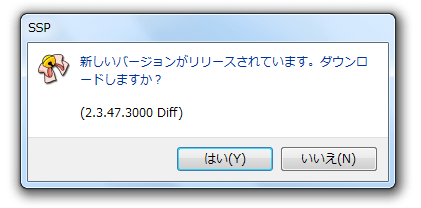
If an update is available, a dialog will ask whether you want to download it. Select “Yes” to start the update.
Once the download is complete, all ghosts will close automatically and SSP will restart, so be aware.
Automatically checking for SSP updates
You can set SSP to check for updates automatically at regular intervals in “General” under “Preferences.”
⇒ For details, see the “General” page.
Updating manually
To download and install an update manually, follow these steps.
1, Download the patch file
Update files are available from SSP BUGTRAQ.
The latest version and some older versions of SSP are also available (as of 2014, they are shown prominently on the left side of the page).
If both a full set and a diff (patch file) are available, you can use either to update. The diff file is smaller.
SSP BUGTRAQ also usually offers some older versions, in addition to the latest version.
Use these if you want to update to a specific version rather than the latest one, or if you want to downgrade (you can still apply a diff in either case).
2, Close the current version of “SSP”
If SSP is still running, the files may fail to overwrite.
3, Extract and overwrite with the new version
As when you installed “SSP,” run the EXE file to extract it.
In general, it’s fine to extract the files into the same folder as the current version and overwrite them.
If an error occurs during the update
If an error occurs, either the download failed or the files could not be overwritten.
Use the message to determine which occurred.
If the message says something like “The archive is corrupted,” the download failed. Try downloading it again.
If the download keeps failing after several attempts, try using a dedicated download application instead of a web browser.
If it’s another kind of error, there could be several causes.
The “Frequently asked questions” page also lists some troubleshooting steps, so take a look.