Settings: Folders
This page explains the “Folders” page in the dialog opened by selecting “Preferences” in the “Settings” submenu of the right-click menu.
Use this page to configure the folders containing files such as ghosts and balloons.
About folder settings
Files for ghosts and other items are normally placed in specific locations under the folder containing the SSP program.
However, you can use these settings to place them wherever you like.
You can configure folders separately for ghosts, balloons, headlines, and plugins.
The settings work much the same way for all of them, so they are explained together below.
Click the “Edit” button to open a dialog where you can add, remove, edit, and reorder folders.
Click the “Reload” button to make SSP detect the folders again.
Editing folders triggers a reload automatically. Click this button if a folder has not been detected for some reason, or if you have changed its contents manually and want SSP to detect it again.
Folder settings dialog
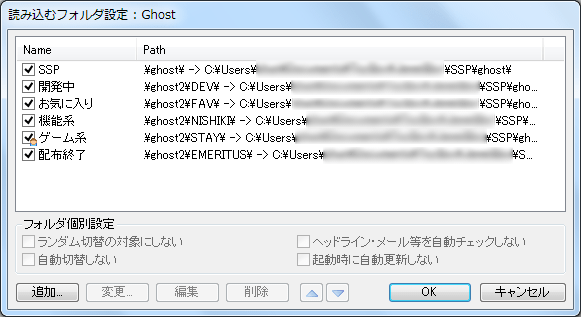
Registering a folder in the folder settings dialog allows SSP to load ghosts, balloons, and other items in that folder.
You can register folders using the buttons, or add them by dragging and dropping them directly.
List
The list of folders to be loaded appears in the upper half of the dialog.
Select a folder to use the buttons or change its individual folder settings.
You can also double-click a folder or click its checkbox on the left to clear the check mark and temporarily exclude the folder from the list of folders to be loaded.
You can also change a folder’s display name from its folder name by clicking the folder name again while it is selected.
If the icon on the left of the list shows 【 】, it means a ghost or other item in that folder is currently running.
While this icon is shown, you cannot exclude the folder from loading or change its path.
Buttons
- Add
Opens the folder selection dialog and adds the selected folder to the list of folders to be loaded. - Change
Opens the folder selection dialog so you can select a different folder and change the path of the selected folder. - Edit
Opens an input box where you can enter a path directly to change the path of the selected folder.
Normally, when you specify a folder using Add or Change, its path is stored as an absolute path if it points outside the folder containing ssp.exe. Use this option if you need to use a relative path for some reason. - Delete
Removes the selected folder from the list of folders to be loaded.
The folder itself is not deleted. - ▲・▼
Moves the selected folder within the list of folders to be loaded.
In some operations, such as installation and ghost launching, the first enabled folder in the list takes priority, so the order matters.
The order also determines how folders are displayed in menus.
Individual folder settings
These settings are for ghosts only.
- Exclude from random switching
When checked, ghosts in this folder will not be selected as destinations for automatic ghost switching.
They are also excluded from random switching commands run by ghosts, as well as from random automatic switching configured in Preferences. - Do not automatically check headlines, email, etc.
When checked, headlines, email, and other items are not checked automatically while a ghost in this folder is running. - Do not switch automatically
When checked, ghosts in this folder will not be switched to another ghost by automatic switching configured in Preferences. - Do not update automatically at startup
When checked, ghosts in this folder will not be updated automatically at startup.
Other settings
- Select the folder to install to
When you install something and have configured multiple folders to be loaded, you can choose which folder to install it to.
If only one folder is set to be loaded, the item is installed to that folder automatically, regardless of this setting. - Select the folders to use at startup
You can enable or disable folders to be detected at startup, and add or remove folders to be loaded.
This is useful if you have many items installed or keep development and testing folders separate, so you can switch between them as needed. - Temporary file location
Set where SSP creates temporary files, such as files used when extracting NARs and caches for headlines/RSS.
Unless you have a specific reason, leave this at the default setting.
Click the “Default” button to use the default setting (SSP\temp\).
Click the “Browse...” button to open the folder selection dialog. - NAR file download location
Set the folder where NAR files are downloaded and saved when you install a ghost or other item by dragging and dropping a URL onto SSP.
Unless you have a specific reason, leave this at the default setting.
Click the “Default” button to use the default setting (SSP\nar\).
Click the “Browse...” button to open the folder selection dialog.
Buttons at the bottom
- Help
Opens the help page for the page currently displayed in the Preferences dialog (that is, this page).
The “?” icon at the top right of the dialog does the same thing. - Close
Closes the Preferences dialog.
The “×” icon at the top right of the dialog does the same thing.