Explorer
This dialog window lists ghosts and other items currently recognized by SSP, and lets you perform operations such as switching between them.
It is useful in a variety of situations, such as when you have many ghosts and it is cumbersome to select one from the Change ghost menu, or when you want to move a selected item between configured folders.
You can also configure SSP to open Explorer every time it starts, so you can select a ghost to launch, from 「Ghost (1)」 in Preferences.
Basic operations
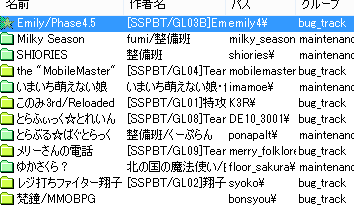
When you first open Explorer, it displays a list of the currently loaded ghosts.
Use the 「Type」 menu at the top to switch to lists of other items, such as balloons or shells.
The item highlighted in blue in the list is selected. Click an item to select it.
As in Windows Explorer, you can select multiple items by holding down the Ctrl key while clicking them, or select a range by holding down the Shift key. However, only a limited set of operations are available when multiple items are selected.
The selected items are the targets of the button at the bottom right of Explorer (「Change」 when the type is Ghost), and you can also perform various operations from the function menu (right-click menu) at the top of Explorer.
For items that you switch to and use, such as ghosts, the item currently in use is selected by default.
Double-clicking an item selects it and performs the same operation as pressing the button at the bottom right.
Click a list column heading (such as Name, Author, Path, or Group) to sort the list in ascending or descending order by that column.
An ▲ mark next to a heading indicates ascending order, and a ▼ mark indicates descending order.
This is useful, for example, when sorting by group if you have configured folders, or when looking for ghosts by a particular author.
For operations available from the right-click/function menu, see the 「Right-click/function menu」 page.
Items organized into folders also have different-colored icons on the left.
Menus at the top
File
- Reload
Checks the folders where ghosts, balloons, and other items are installed, and reflects any new or deleted ghosts.
You normally do not need to use this, but it can be useful after manually changing files. - Close
Closes Explorer (the same as the × button at the top right).
Edit
- Copy
Copies information about the selected item.
For ghosts, the clipboard receives the ghost name,\0name,\1name, author name, and distribution URL, separated by spaces.
For other items, it receives the item name, author name, and distribution URL, separated by spaces. - Select all
Selects every item in the list.
Use this when you want to perform an operation on all items at once, such as running a network update for them.
Note that operating on all items at once can take a long time, depending on the number of items and the operation. - Search
Searches all items in the list for the entered word and selects the first matching item.
Author names and other information are also searched.
Use this when you have many installed items and it is cumbersome to find one with a particular name. - Find next
Selects the next item matching the current search word.
Each time you run the search, it moves to the next match; after the last match, it starts again from the first.
Type
Switches to a list of the selected type.
Only the shells belonging to the ghost from which you opened Explorer are displayed (the ghost name appears at the top of the Explorer window frame in the form 「Explorer - ○○」).
Functions
The image shows the menu when the type is 「Ghost」.
Performs various operations on the selected item.
The same menu is displayed when you right-click in the list.
For details, see the 「Right-click/function menu」 page.
Settings
- Do not close automatically
When enabled, Explorer does not close automatically after you run (switch to) an item selected in Explorer.
Buttons at the bottom
Each button is available when a list of the type shown in its [] brackets is displayed.
- Close[All]
Closes Explorer (the same as the × button at the top right). - Change[Ghost/Shell/Balloon]
Switches the ghost, balloon, or shell in use to the selected one. - Read aloud[Headline]
Starts reading aloud the headline from the selected website. - Settings/Run[Plugin]
Launches the plugin, or opens its settings menu.
The behavior depends on the plugin.